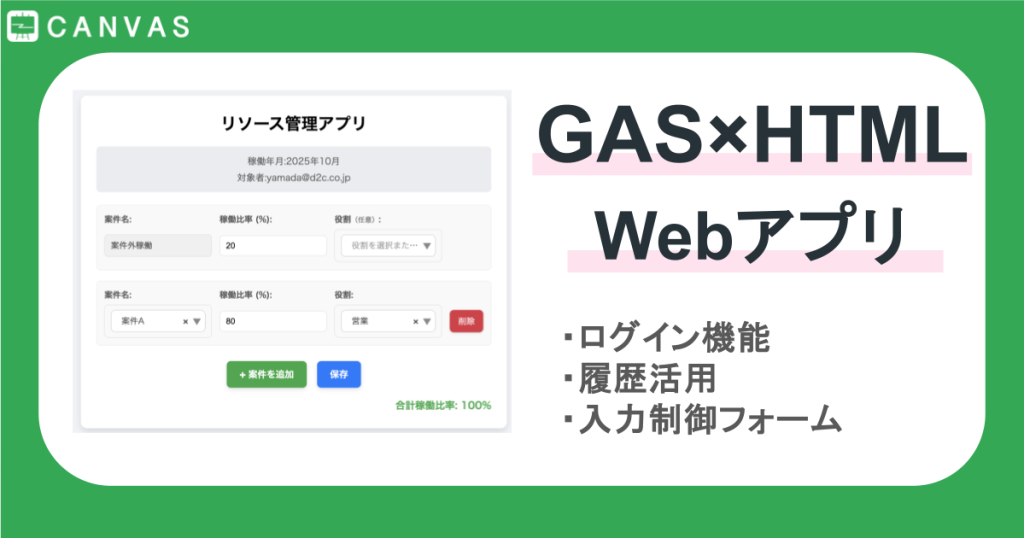
GASでタスク管理Webアプリ作成|ログイン機能・履歴活用・入力制御も!
▼データマーケティングの教科書 下
初心者の方から、より詳しくなりたいという方へ。
本書ではデータマーケティングの基礎から学び、データを通じて顧客の行動や感情を理解し、
より確かな意思決定を目指します。
みなさん、こんにちは!
社内業務を効率化するためのアプリを作りたいけれど、「ログイン機能や履歴管理、入力制御まで必要になるとハードルが高い」と感じたことはありませんか?
Google Apps Script(GAS)を使えば、スプレッドシートと連携したアプリを手軽に作成でき、ログイン機能や入力制御、履歴管理まで実装可能です。
本記事では、初心者でも分かるように、基本の作り方から実務で使えるポイントまで解説しますので、ぜひ最後までご覧ください!
目次
GASのWebアプリとは
GASは、Googleが提供するスクリプト環境で、スプレッドシートやGmailなどと連携したWebアプリを作ることができます。
サーバー環境は不要で、ブラウザ上で動くため、社内向けのちょっとしたツールや業務改善アプリを手軽に作れるのが魅力です。
ちょっとしたアイデアをすぐ形にできるので、「自分の業務を効率化したい」「細かいカスタムができるアプリを作りたい」という場面で特に力を発揮します。
アプリ概要
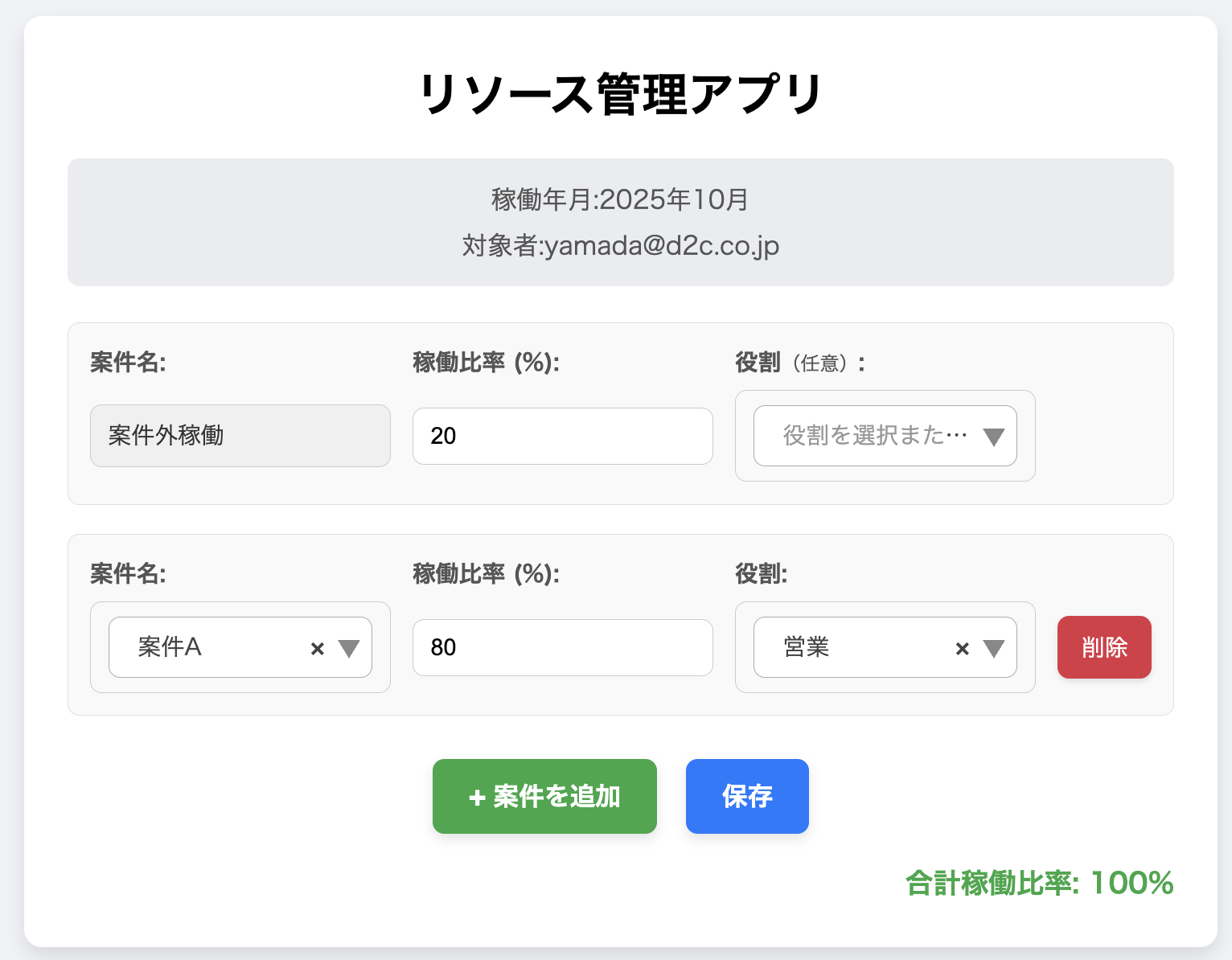
今回紹介するアプリは、社内での案件稼働比率を管理するために作成したものです。
ユーザーが毎月入力した稼働情報は自動的にスプレッドシートに転記され、ログイン機能を通じて各自のアカウントに紐づいた前月分の稼働実績が自動入力される仕組みになっています。
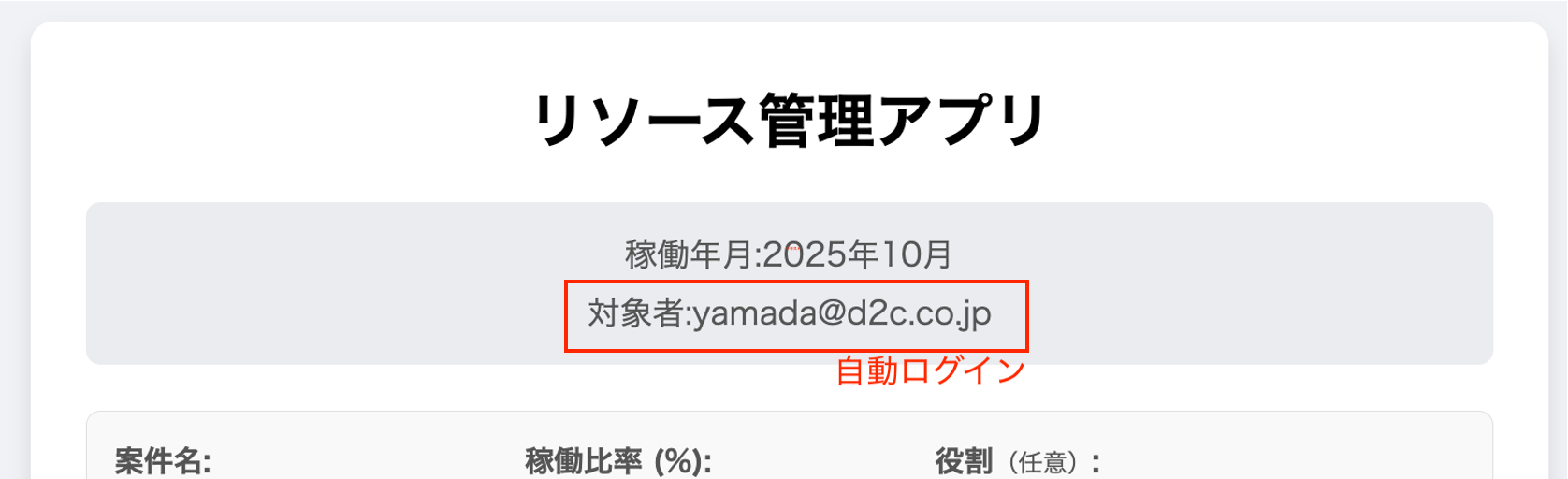
また、スプレッドシートで管理しているユーザーのマスター情報から役職や所属を取得し、履歴として記録することもできます。
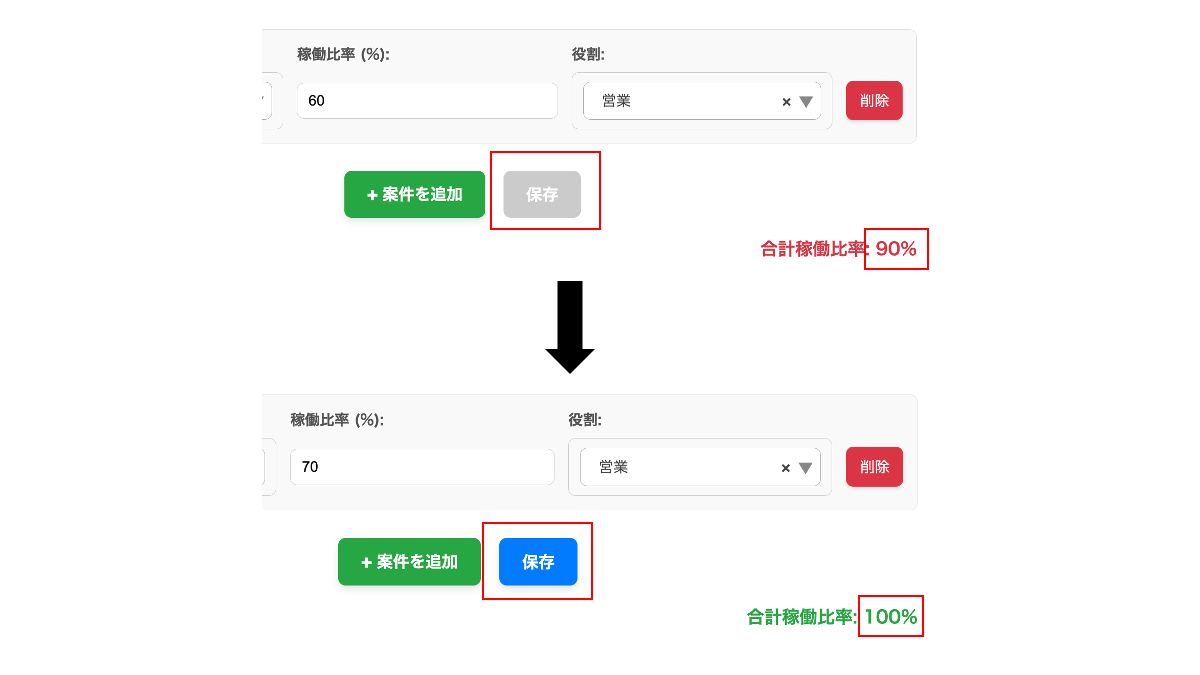
アプリの画面では、案件マスターを参照しながら稼働比率を入力します。
ここでポイントなのは、入力の合計が100%にならないと保存できないように制御している点です。このような入力制御を取り入れることで、集計時にデータの誤りが生じるのを防ぎ、管理者の負担を軽減できます。
Google スプレッドシートの作成
ユーザーごとの情報を管理する「ユーザーマスターシート」、案件名やコードなどを登録する「案件マスターシート」、そしてアプリから送信された入力内容を保存する「履歴管理シート」の3つを用意します。
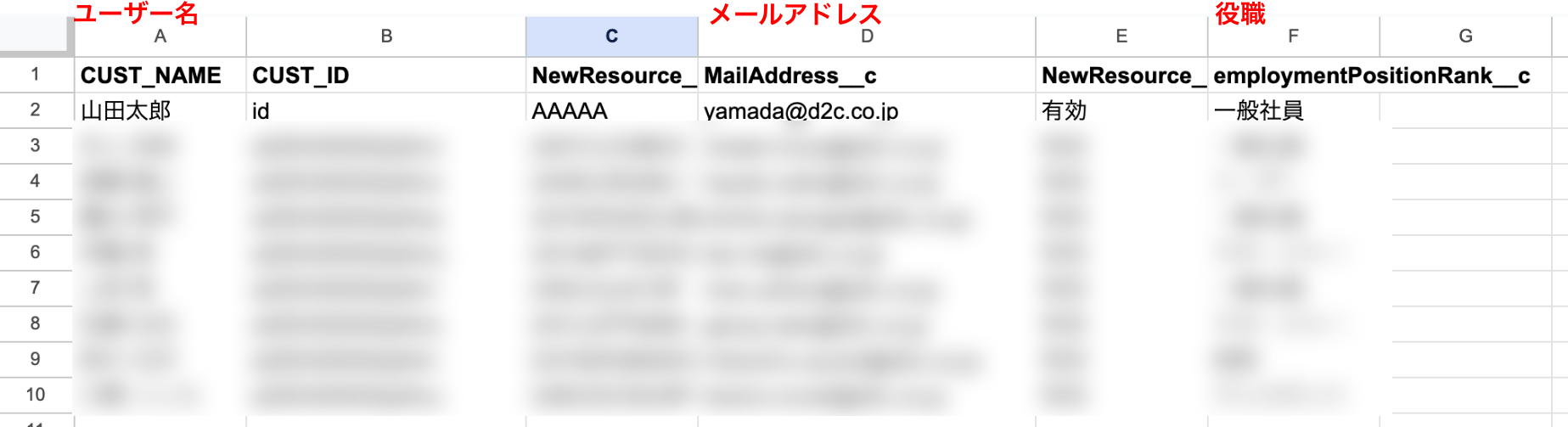
ユーザーマスターシート
ユーザーマスターシートには、アプリを開いたアカウントのメールアドレスをもとに紐づけられる名前や役職などの情報を記載します。この情報を参照して、誰がいつどの案件にどれだけ稼働したかを管理することができます。
案件マスターシート
案件マスターシートには、アプリ側でプルダウン表示する案件一覧をまとめます。
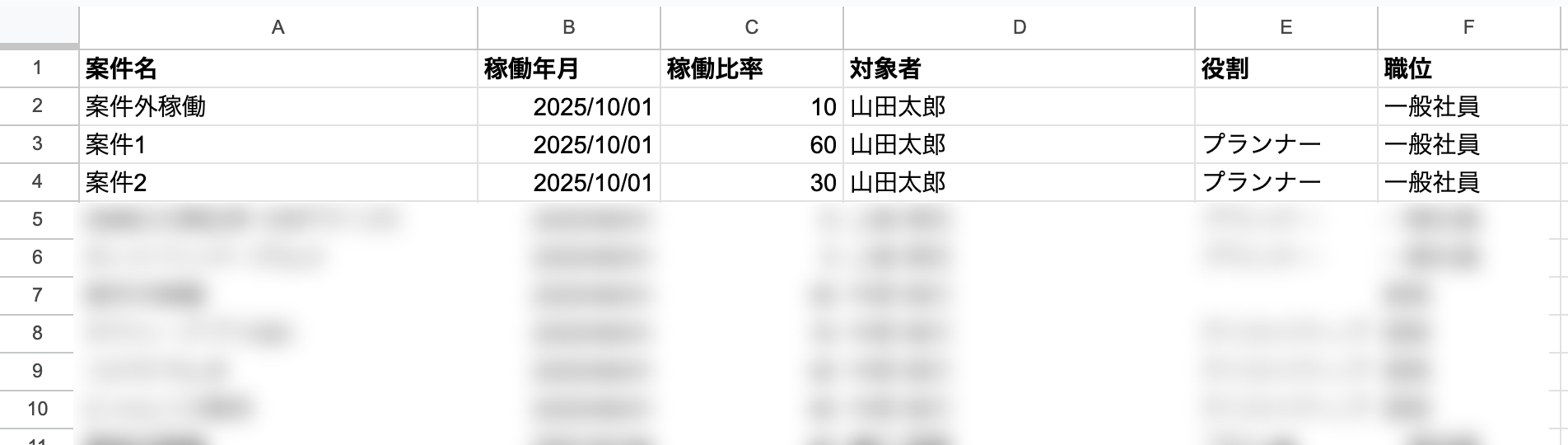
履歴管理シート
履歴管理シートは、ユーザーがアプリ上で入力したデータを自動で記録するためのシートで、前月分の稼働実績を自動入力する制御にも使用します。
GASプロジェクトの作成
スプレッドシートの準備ができたら、GASプロジェクトを作成します。
スプレッドシートの「拡張機能」メニューから「Apps Script」を開き、新しいプロジェクトを作成します。
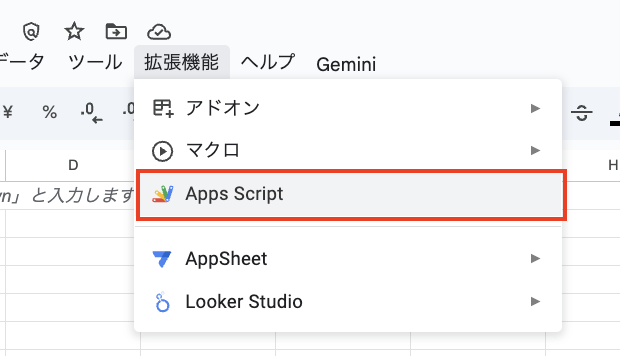
プロジェクト内には、フロントエンド用のHTMLファイルと、バックエンド用のコードファイルを作成します。フロントエンドではユーザーが操作する画面を作り、バックエンドではスプレッドシートとのデータのやり取りやログイン認証、入力制御の処理を行います。
フロントエンドのコード
フロントエンドでは、ログイン画面やデータ入力画面、履歴表示画面をHTMLとCSSで作ります。
入力フォームは見やすくシンプルにデザインし、JavaScriptを使ってプルダウンを動的に生成したり、稼働比率の合計が100%にならない場合は保存できないように制御したりします。
スプシだけでは難しい入力制限や動的生成を叶えてくれるのが強みです。
<html>
<head>
 <title>リソース管理</title>
</head>
<body>
 <div class="loading-overlay" id="loadingOverlay">...</div>

 <div class="modal-overlay" id="confirmationModal">...</div>

 <div class="modal-overlay" id="messageModal">...</div>

 <div class="container">
  <div class="info-display">
   <p>稼働年月: <span id="displayWorkingMonth"></span></p>
   <p>対象者: <span id="userEmailDisplay"></span></p>
   <p id="twoMonthsAgoWarning">...</p>
  </div>

  <div id="fixedInputRow" class="input-row fixed-row"></div>
  <div id="inputRowsContainer"></div>

  <div class="button-group">
   <button id="addRowButton">案件を追加</button>
   <button id="saveButton" disabled>保存</button>
  </div>

  <div id="totalAllocation">合計稼働比率: 0%</div>
  <div id="messageBox"></div>
 </div>

 <script src=".../jquery.min.js"></script>
 <script src=".../select2.min.js"></script>

 <script>...</script>
</body>
</html>
実際に動作するコード全文はページの最後にまとめてありますので、必要に応じてご確認ください。
合計稼働比率100%の制御
この制御を行っている中心的な関数は updateAllocationTotal() です。
1. 稼働率の合計を計算し、状態を更新する関数
この関数は、固定行と動的行のすべての「稼働比率」の合計を計算し、その結果に基づいてUIの表示と「保存ボタン」の状態を更新します。
function updateAllocationTotal() {
 let total = 0;
 // 固定行の稼働比率を加算
 total += parseInt($('#fixedAllocation').val() || 0);

 // 動的行すべての稼働比率を加算
 $('.input-row:not(.fixed-row) .allocation-input').each(function() {
  total += parseInt($(this).val() || 0);
 });

 const totalAllocationElement = document.getElementById('totalAllocation');
 const saveButton = document.getElementById('saveButton'); // 保存ボタンを取得

 totalAllocationElement.textContent = `合計稼働比率: ${total}%`;
 totalAllocationElement.classList.remove('error', 'success');

 // 保存ボタンの状態を制御する肝心の部分
 if (total === 100) {
  totalAllocationElement.classList.add('success');
  // 合計が100%の場合、ボタンを有効化 (押せる状態にする)
  saveButton.disabled = false;
 } else {
  totalAllocationElement.classList.add('error');
  // 合計が100%ではない場合、ボタンを無効化 (押せない状態にする)
  saveButton.disabled = true;
 }
}
2. 保存ボタンの初期状態
HTML内で、保存ボタンは初期状態で無効化されています。
<button type="button" class="button button-save" id="saveButton" **disabled**>保存</button>これは、updateAllocationTotal() が一度も実行されていない、または合計が100%ではない場合に、デフォルトでボタンが押せない状態にしておくためです。
3. イベントトリガー
updateAllocationTotal() 関数は、以下のユーザー操作が発生するたびに呼び出されます。
-
案件の稼働比率の入力値が変更されたとき (
.allocation-inputの'input'イベント)。 -
動的行が追加されたとき (
addRow()の最後)。 -
動的行が削除されたとき (削除確認後のコールバック内)。
-
ページロード時に初期データが読み込まれたとき (
loadInitialData()の最後)。
これにより、ユーザーが稼働比率を変更するたびに合計が計算され、即座に保存ボタンの有効/無効が切り替わります。
4. 保存時の最終検証
さらに、ユーザーが保存ボタンをクリックした際にも、データ送信の直前で再度100%であることを確認するコードが入っています。これは、クライアント側の検証を二重に行い、予期せぬエラーを防ぐためです。
 let currentTotal = 0;
 dataToSave.forEach(item => currentTotal += item.allocation);
 if (currentTotal !== 100) {
  showMessage('合計稼働比率が100%ではありません。', 'error'); // エラーメッセージを表示
  return; // 保存処理を中断
 }
バックエンドのコード
バックエンドでは、ユーザー認証やスプレッドシートとの連携処理をGASで書きます。
ログイン時にはユーザーマスターシートを参照してメールアドレスを照合し、認証に成功したユーザーの情報を取得します。
入力内容は履歴管理シートに保存され、前月分の稼働実績を自動で反映する仕組みもここで処理されます。
案件マスタシート、ユーザーマスタシートからデータを取得
-
各シートからデータを取得し、特に案件名や役割名については、空のセルを除去してリスト化します。
-
メールアドレスをキーとして、そのユーザーのユーザー名、職位名を対応付けたオブジェクト(マップ)を作成します。
-
最終的に、これらすべてのマスタデータ (
projects,roles,userNames,userPositions) を含む単一のオブジェクトとしてフロントエンド(HTML/JavaScript)に返します。
function getMasters() {
 const ss = SpreadsheetApp.getActiveSpreadsheet();


 // 案件マスタシートからデータを取得
 const projectSheet = ss.getSheetByName('案件名マスタ');
 if (!projectSheet) {
  throw new Error('「案件名マスタ」シートが見つかりません。シート名を確認してください。');
 }
 const projectData = projectSheet.getRange('A2:A' + projectSheet.getLastRow()).getValues();
 const projects = projectData.flat().filter(String); // 空のセルを除外

 // 役割マスタシートからデータを取得
 省略...
 // ユーザー職位マスタシートからデータを取得 (A列:ユーザー名, D列:メールアドレス, F列:職位名)
 省略...

 // マップ形式に変換: { 'メールアドレス': '職位名' }, { 'メールアドレス': 単価 }, { 'メールアドレス': 'ユーザー名' }
 const userPositions = {}; // ユーザーのメールアドレスと職位のマップ
 const userNames = {}; // ユーザーのメールアドレスとユーザー名のマップ

 userPositionData.forEach(row => {
 const userName = row[0]; // 取得範囲の1列目 (A列)
 const email = row[3]; // 取得範囲の4列目 (D列)
 const position = row[5]; // 取得範囲の6列目 (F列)
 省略...

 return {
  projects: projects,
  roles: roles,
  userPositions: userPositions, // ユーザーごとの職位情報を返す
  userNames: userNames // ユーザーごとのユーザー名情報を返す
 };
}
入力されたデータをスプレッドシートに保存/指定された稼働年月とユーザーの既存データは上書き
この制御を行っている中心的な関数は saveData() です。
webアプリのフロントエンドから送信されたユーザーの稼働データを検証し、スプシのシートに保存・更新する役割を担っています。
function saveData(selectedWorkingMonthStr, data) {
 const ss = SpreadsheetApp.getActiveSpreadsheet();
 const sheet = ss.getSheetByName('データ'); // 'データ' シートを取得

 if (!sheet) {
  return { success: false, message: '「データ」シートが見つかりません。シート名を確認してください。' };
 }

 const userEmail = Session.getActiveUser().getEmail(); // 現在のユーザーのGoogleアカウント名を取得
 const selectedWorkingMonth = new Date(selectedWorkingMonthStr); // 選択された稼働年月をDateオブジェクトに変換

 const masters = getMasters(); // 最新のマスタデータを取得
 const userPosition = masters.userPositions[userEmail] || '不明'; // ユーザーの職位を取得、なければ'不明'
 const positionCost = masters.userCosts[userEmail] || 0; // ユーザーの単価を直接取得、なければ0
 const userName = masters.userNames[userEmail] || userEmail; // ユーザー名を取得、なければメールアドレスを代替

 const newRows = [];
 data.forEach(item => {
  // 各案件のデータを新しい行として追加 (新しい列順: 案件名, 稼働年月, 稼働比率, 対象者, 役割, 職位)
  newRows.push([
   item.project, // A列: 案件名
   selectedWorkingMonth, // B列: 稼働年月
   item.allocation, // C列: 稼働比率
   userName, // D列: 対象者 (ユーザー職位マスタのA列の値)
   item.role, // E列: 役割
   userPosition, // F列: 職位
  ]);
 });

 try {
  省略...
  // 現在のユーザーのデータをフィルタリングして除外
  // フィルタリングは、現在のユーザーの「ユーザー名」(D列)と稼働年月(B列)が一致する行を対象とします。
  // 現在のユーザー名と選択された稼働年月が一致しない行のみを残す
  省略...

  // シートの既存データをクリアし、フィルタリングされたデータと新しいデータを書き込む
  sheet.getRange(2, 1, lastRow - 1, numColumns).clearContent(); // 新しい列数でクリア
  if (filteredExistingData.length > 0) {
   sheet.getRange(2, 1, filteredExistingData.length, numColumns).setValues(filteredExistingData); // 新しい列数で設定
  }
  // フィルタリングされた既存データの後に新しいデータを追加
  sheet.getRange(sheet.getLastRow() + 1, 1, newRows.length, numColumns).setValues(newRows); // 新しい列数で設定

  return { success: true, message: 'データが正常に保存されました。' };
 } catch (e) {
  return { success: false, message: 'データの保存中にエラーが発生しました: ' + e.message };
 }
}
1. データの準備とユーザー情報の取得
引数として受け取った稼働年月と案件データ配列を取得します。
Session.getActiveUser().getEmail() を使って現在のユーザーのメールアドレスを取得し、getMasters() を呼び出してそのユーザーのユーザー名、職位、単価といった詳細情報を取得
2. 既存データの上書き処理(排他制御)
この関数は、該当ユーザーの、該当月の既存データ全てを「上書き」するロジックを採用しています。
-
「データ」シートから既存の全データを取得
-
取得したデータの中から、現在のユーザーかつ選択された稼働年月に一致する行を特定し、その行を除外します(つまり、削除対象とします)。
-
シートの既存データを全てクリア
-
フィルタリングされた(残す)既存データをシートに書き戻し
-
その直後に、手順2で作成した新しい行のデータをシートの末尾に追加
これにより、ユーザーが同じ月に対して何度データを送信しても、古いデータが残らず、最新のデータで置き換わること(排他制御)が保証されます。
3. 結果の返却
保存処理が成功したかどうかのステータスと、結果メッセージをフロントエンドに返します。
失敗時

成功時

Webアプリ完成
完成したアプリでは、ユーザーがログインすると前月の稼働実績が自動で入力され、案件ごとの稼働比率を入力できるようになります。
コード全体はこちらをクリック
<html>


<head>
<base target="_top">
<meta name="viewport" content="width=device-width, initial-scale=1.0">
<title>リソース管理</title>
<!-- Select2 CSS for enhanced dropdowns -->
<link href="https://cdnjs.cloudflare.com/ajax/libs/select2/4.0.13/css/select2.min.css" rel="stylesheet" />
<style>
/* Basic body and container styling for a clean, centered layout */
body {
font-family: 'Inter', sans-serif;
background-color: #f0f2f5;
display: flex;
justify-content: center;
align-items: flex-start; /* Align to the top of the viewport */
min-height: 100vh;
margin: 0;
padding: 20px;
box-sizing: border-box;
}


.container {
background-color: #ffffff;
padding: 30px;
border-radius: 12px;
box-shadow: 0 6px 12px rgba(0, 0, 0, 0.1);
width: 100%;
max-width: 1200px;
box-sizing: border-box;
}


.title {
display: flex;
justify-content: center;
align-items: center;
margin-bottom: 20px;
}


.title img {
width: 5rem;
padding-right: 1rem;
}


.title p {
font-size: 2rem;
font-weight: bold;
margin: 0;
}


h1 {
color: #333;
text-align: center;
margin-bottom: 20px;
font-size: 1.8em;
}


/* Information display section (e.g., month, user email) */
.info-display {
text-align: center;
margin-bottom: 25px;
font-size: 1.1em;
color: #555;
padding: 10px;
background-color: #e9ecef;
border-radius: 8px;
}


.info-display p {
margin: 5px 0;
display: flex;
justify-content: center;
align-items: center;
}


/* Styling for input rows (fixed and dynamic) */
.input-row {
display: flex;
flex-wrap: wrap;
gap: 15px;
margin-bottom: 20px;
align-items: flex-start; /* Align items to the top of the row */
padding: 15px;
border: 1px solid #e0e0e0;
border-radius: 8px;
background-color: #f9f9f9;
}


.input-row.fixed-row .fixed-text {
margin-top: 18px; /* Adjust margin for fixed text to align with input fields */
}


.input-group {
flex: 1;
min-width: 180px; /* Minimum width for input groups */
}


.input-group label {
display: block;
margin-bottom: 8px;
color: #555;
font-weight: 600;
}


.input-group label small {
font-weight: 300;
}


/* Styling for number inputs, Select2 containers, and fixed text displays */
.input-group input[type="number"],
.input-group .select2-container,
.input-group .fixed-text {
width: 100% !important;
padding: 10px 12px;
border: 1px solid #ccc;
border-radius: 8px;
box-sizing: border-box;
font-size: 1em;
transition: border-color 0.3s;
}


.input-group input[type="number"]:focus,
.input-group .select2-container--default .select2-selection--single:focus {
border-color: #007bff;
outline: none;
}


.input-group .fixed-text {
background-color: #f0f0f0;
color: #333;
line-height: 22px;
display: flex;
align-items: center;
min-height: 42px; /* Ensure consistent height with Select2 */
}


/* Select2 specific styling to match input fields */
.select2-container--default .select2-selection--single {
height: 42px;
display: flex;
align-items: center;
padding: 0 12px;
border-radius: 8px;
}


.select2-container--default .select2-selection--single .select2-selection__rendered {
line-height: 42px;
width: 100%;
}


.select2-container--default .select2-selection--single .select2-selection__arrow {
height: 87%;
right: 1.4rem;
}


.select2-container--default .select2-selection--single .select2-selection__arrow b {
border-width: 0.8rem 0.5rem 0 0.5rem;
}


.select2-container--default.select2-container--open .select2-selection--single .select2-selection__arrow b {
border-width: 0 0.5rem 0.8rem 0.5rem;
}


/* Button group styling */
.button-group {
display: flex;
justify-content: center;
gap: 20px;
margin-top: 30px;
}


.button {
padding: 12px 25px;
border: none;
border-radius: 8px;
font-size: 1.1em;
cursor: pointer;
transition: background-color 0.3s, transform 0.2s, box-shadow 0.3s;
font-weight: 600;
box-shadow: 0 4px 8px rgba(0, 0, 0, 0.1);
}


.button-add {
background-color: #28a745;
color: white;
}


.button-add:hover {
background-color: #218838;
transform: translateY(-2px);
box-shadow: 0 6px 12px rgba(0, 0, 0, 0.2);
}


.button-save {
background-color: #007bff;
color: white;
}


.button-save:hover:not(:disabled) {
background-color: #0056b3;
transform: translateY(-2px);
box-shadow: 0 6px 12px rgba(0, 0, 0, 0.2);
}


.button-save:disabled {
background-color: #cccccc;
cursor: not-allowed;
box-shadow: none;
}


/* Delete row button styling */
.delete-row-button {
background-color: #dc3545;
color: white;
border: none;
border-radius: 8px;
padding: 10px 15px;
cursor: pointer;
font-size: 1em;
width:65px; /* Fixed width for alignment */
transition: background-color 0.3s;
align-self: flex-end; /* Align to the bottom of the input row */
margin-bottom: 10px;
box-shadow: 0 2px 4px rgba(0, 0, 0, 0.1);
}


.delete-row-button:hover {
background-color: #c82333;
}


/* Total allocation display styling */
.total-allocation {
text-align: right;
margin-top: 20px;
font-size: 1.2em;
font-weight: bold;
color: #333;
}


.total-allocation.error {
color: #dc3545;
}


.total-allocation.success {
color: #28a745;
}


/* Message box for success/error messages */
.message-box {
margin-top: 20px;
padding: 15px;
border-radius: 8px;
text-align: center;
font-weight: bold;
opacity: 0;
transition: opacity 0.5s ease-in-out;
}


.message-box.show {
opacity: 1;
}


.message-box.success {
background-color: #d4edda;
color: #155724;
border: 1px solid #c3e6cb;
}


.message-box.error {
background-color: #f8d7da;
color: #721c24;
border: 1px solid #f5c6cb;
}


/* Loading overlay and spinner */
.loading-overlay {
position: fixed;
top: 0;
left: 0;
width: 100%;
height: 100%;
background: rgba(255, 255, 255, 0.8);
display: flex;
justify-content: center;
align-items: center;
z-index: 1000;
visibility: hidden;
opacity: 0;
transition: visibility 0s, opacity 0.3s linear;
}


.loading-overlay.visible {
visibility: visible;
opacity: 1;
}


.spinner {
border: 8px solid #f3f3f3;
border-top: 8px solid #3498db;
border-radius: 50%;
width: 60px;
height: 60px;
animation: spin 2s linear infinite;
}


.allocation-input{
margin:12px auto; /* Adjust margin for allocation input */
}


@keyframes spin {
0% {
transform: rotate(0deg);
}


100% {
transform: rotate(360deg);
}
}


/* Custom Modal Styles for confirmations */
.modal-overlay {
position: fixed;
top: 0;
left: 0;
width: 100%;
height: 100%;
background: rgba(0, 0, 0, 0.6);
display: flex;
justify-content: center;
align-items: center;
z-index: 1001;
visibility: hidden;
opacity: 0;
transition: visibility 0s, opacity 0.3s linear;
}


.modal-overlay.visible {
visibility: visible;
opacity: 1;
}


.modal-content {
background: white;
padding: 30px;
border-radius: 12px;
box-shadow: 0 8px 16px rgba(0, 0, 0, 0.2);
text-align: center;
max-width: 400px;
width: 90%;
transform: scale(0.9);
transition: transform 0.3s ease-out;
}


.modal-overlay.visible .modal-content {
transform: scale(1);
}


.modal-content h3 {
margin-top: 0;
color: #333;
font-size: 1.5em;
}


.modal-content p {
margin-bottom: 25px;
color: #555;
line-height: 1.5;
}


.modal-buttons {
display: flex;
justify-content: center;
gap: 15px;
}


.modal-button {
padding: 10px 20px;
border: none;
border-radius: 8px;
font-size: 1em;
cursor: pointer;
transition: background-color 0.3s, transform 0.2s;
font-weight: 600;
}


.modal-button.confirm {
background-color: #dc3545;
color: white;
}


.modal-button.confirm:hover {
background-color: #c82333;
transform: translateY(-1px);
}


.modal-button.cancel {
background-color: #6c757d;
color: white;
}


.modal-button.cancel:hover {
background: #5a6268;
transform: translateY(-1px);
}


/* New styles for the message-only modal */
.message-modal-content {
background: white;
padding: 30px;
border-radius: 12px;
box-shadow: 0 8px 16px rgba(0, 0, 0, 0.2);
text-align: center;
max-width: 400px;
width: 90%;
transform: scale(0.9);
transition: transform 0.3s ease-out;
}


.message-modal-overlay.visible .message-modal-content {
transform: scale(1);
}


.message-modal-button {
padding: 10px 20px;
border: none;
border-radius: 8px;
font-size: 1em;
cursor: pointer;
transition: background-color 0.3s, transform 0.2s;
font-weight: 600;
background-color: #007bff; /* Primary color for OK button */
color: white;
}


.message-modal-button:hover {
background-color: #0056b3;
transform: translateY(-1px);
}


/* Responsive design for smaller screens */
@media (max-width: 768px) {
.input-row {
flex-direction: column;
align-items: stretch;
}


.input-group {
width: 100%;
min-width: unset;
}


.delete-row-button {
width: 100%;
margin-top: 10px;
}


.button-group {
flex-direction: column;
}


.button {
width: 100%;
}


.modal-content, .message-modal-content {
padding: 20px;
}


.modal-buttons {
flex-direction: column;
}


.modal-button, .message-modal-button {
width: 100%;
}
}


.warning-message {
margin-top: 10px;
font-size: 0.9em;
color: orange;
font-weight: bold;
}
</style>
</head>


<body>
<!-- Loading Overlay -->
<div class="loading-overlay" id="loadingOverlay">
<div class="spinner"></div>
</div>


<!-- Custom Confirmation Modal (for Yes/No questions) -->
<div class="modal-overlay" id="confirmationModal">
<div class="modal-content">
<h3 id="modalTitle">確認</h3>
<p id="modalMessage">この操作を実行してもよろしいですか?</p>
<div class="modal-buttons">
<button type="button" class="modal-button confirm" id="modalConfirmButton">はい</button>
<button type="button" class="modal-button cancel" id="modalCancelButton">キャンセル</button>
</div>
</div>
</div>


<!-- New Custom Message Modal (for simple alerts/info) -->
<div class="modal-overlay" id="messageModal">
<div class="message-modal-content">
<h3 id="messageModalTitle"></h3>
<p id="messageModalMessage"></p>
<button type="button" class="message-modal-button" id="messageModalOkButton">OK</button>
</div>
</div>


<div class="container">
<div class="title">
<p>リソース管理</p>
</div>


<!-- Information display for working month and user email -->
<div class="info-display">
<p>稼働年月: <span id="displayWorkingMonth"></span></p>
<p>対象者: <span id="userEmailDisplay"></span></p>
<p class="warning-message" id="twoMonthsAgoWarning" style="display: none;">
</p>
</div>


<!-- Fixed input row for "案件外稼働" -->
<div id="fixedInputRow" class="input-row fixed-row">
<div class="input-group">
<label>案件名:</label>
<span id="fixedProjectName" class="fixed-text">案件外稼働</span>
<input type="hidden" id="fixedProjectValue" value="案件外稼働">
</div>
<div class="input-group">
<label for="fixedAllocation">稼働比率 (%):</label>
<input type="number" id="fixedAllocation" class="allocation-input" min="0" max="100" value="0">
</div>
<div class="input-group">
<label for="fixedRole">役割<small>(任意)</small>:</label>
<select id="fixedRole" class="role-select"></select>
</div>
<!-- Spacer to maintain layout alignment with dynamic rows' delete buttons -->
<div class="delete-button-spacer" style="width: 65px; height: 36px; align-self: flex-end; margin-bottom: 10px;"></div>
</div>


<!-- Container for dynamically added input rows -->
<div id="inputRowsContainer">
<!-- Dynamic input rows will be added here by JavaScript -->
</div>


<!-- Action buttons -->
<div class="button-group">
<button type="button" class="button button-add" id="addRowButton">
<span style="font-size: 1.2em; vertical-align: middle;">+</span> 案件を追加
</button>
<button type="button" class="button button-save" id="saveButton" disabled>保存</button>
</div>


<!-- Total allocation display -->
<div class="total-allocation" id="totalAllocation">合計稼働比率: 0%</div>
<!-- Message box for displaying feedback (kept for non-modal messages) -->
<div class="message-box" id="messageBox"></div>
</div>


<!-- jQuery (dependency for Select2) -->
<script src="https://cdnjs.cloudflare.com/ajax/libs/jquery/3.6.0/jquery.min.js"></script>
<!-- Select2 JS for enhanced dropdowns -->
<script src="https://cdnjs.cloudflare.com/ajax/libs/select2/4.0.13/js/select2.min.js"></script>


<script>
const FIXED_PROJECT_NAME = "案件外稼働"; // Constant for the fixed project name


let projectsMaster = []; // Stores master list of projects
let rolesMaster = []; // Stores master list of roles
let rowCounter = 0; // Counter for generating unique row IDs
let userEmail = ''; // Stores the current user's email address
let currentWorkingMonthFormatted = ''; // Stores the formatted "last month" for data operations (YYYY-MM-DD)


// Variables to hold custom confirmation modal callbacks
let modalConfirmCallback = null;
let modalCancelCallback = null;


/**
* Shows the loading overlay.
*/
function showLoading() {
document.getElementById('loadingOverlay').classList.add('visible');
}


/**
* Hides the loading overlay.
*/
function hideLoading() {
document.getElementById('loadingOverlay').classList.remove('visible');
}


/**
* Displays a message in the message box (non-modal, fades out).
* @param {string} message - The message to display.
* @param {'success' | 'error'} type - The type of message (determines styling).
*/
function showMessage(message, type) {
const messageBox = document.getElementById('messageBox');
messageBox.textContent = message;
messageBox.className = `message-box show ${type}`;
// Hide the message after 5 seconds
setTimeout(() => {
messageBox.classList.remove('show');
}, 5000);
}


/**
* Displays a custom confirmation dialog.
* @param {string} message - The message to display in the dialog.
* @param {function} onConfirm - Callback function to execute when "Yes" is clicked.
* @param {function} [onCancel=null] - Optional callback function to execute when "Cancel" is clicked.
* @param {string} [title='確認'] - Optional title for the dialog.
*/
function showConfirmationModal(message, onConfirm, onCancel = null, title = '確認') {
document.getElementById('modalTitle').textContent = title;
document.getElementById('modalMessage').textContent = message;
document.getElementById('confirmationModal').classList.add('visible');


modalConfirmCallback = onConfirm;
modalCancelCallback = onCancel;
}


/**
* Hides the custom confirmation dialog.
*/
function hideConfirmationModal() {
document.getElementById('confirmationModal').classList.remove('visible');
modalConfirmCallback = null;
modalCancelCallback = null;
}


/**
* Displays a simple message modal with an OK button.
* @param {string} message - The message to display.
* @param {string} [title='通知'] - The title of the modal.
* @param {function} [onOk=null] - Optional callback function to execute when "OK" is clicked.
*/
function showMessageModal(message, title = '通知', onOk = null) {
document.getElementById('messageModalTitle').textContent = title;
document.getElementById('messageModalMessage').textContent = message;
document.getElementById('messageModal').classList.add('visible');


const okButton = document.getElementById('messageModalOkButton');
okButton.onclick = () => {
hideMessageModal();
if (onOk) {
onOk();
}
};
}


/**
* Hides the simple message modal.
*/
function hideMessageModal() {
document.getElementById('messageModal').classList.remove('visible');
const okButton = document.getElementById('messageModalOkButton');
okButton.onclick = null; // Clear the click handler
}


// Event listeners for the custom modal buttons
document.getElementById('modalConfirmButton').addEventListener('click', () => {
if (modalConfirmCallback) {
modalConfirmCallback();
}
hideConfirmationModal();
});


document.getElementById('modalCancelButton').addEventListener('click', () => {
if (modalCancelCallback) {
modalCancelCallback();
}
hideConfirmationModal();
});


/**
* Formats a date string into "YYYY年MM月" for display.
* @param {string} dateString - The date string (e.g., "YYYY-MM-DD").
* @returns {string} Formatted date string.
*/
function formatMonthDisplay(dateString) {
const date = new Date(dateString);
const year = date.getFullYear();
const month = (date.getMonth() + 1).toString().padStart(2, '0');
return `${year}年${month}月`;
}


// Initialize the application when the document is ready
$(document).ready(function() {
showLoading();


// Calculate "last month" to set as the current working month for data entry/saving
const today = new Date();
const year = today.getFullYear();
const month = today.getMonth(); // 0-indexed (0: Jan, 1: Feb, ...)
const lastMonth = new Date(year, month - 1, 1);
currentWorkingMonthFormatted = `${lastMonth.getFullYear()}-${(lastMonth.getMonth() + 1).toString().padStart(2, '0')}-01`;


// Display the calculated "last month"
document.getElementById('displayWorkingMonth').textContent = formatMonthDisplay(currentWorkingMonthFormatted);


// Fetch user email and master data in parallel using Promises
Promise.all([
new Promise((resolve, reject) => {
google.script.run
.withSuccessHandler(resolve)
.withFailureHandler(reject)
.getEmail();
}),
new Promise((resolve, reject) => {
google.script.run
.withSuccessHandler(resolve)
.withFailureHandler(reject)
.getMasters();
})
])
.then(([email, masters]) => {
userEmail = email;
document.getElementById('userEmailDisplay').textContent = userEmail;


projectsMaster = masters.projects;
rolesMaster = masters.roles;


// Initialize Select2 for the fixed row's role dropdown
$('#fixedRole').select2({
data: rolesMaster.map(r => ({ id: r, text: r })),
placeholder: "役割を選択または検索",
allowClear: true
});


// Set up event listeners for the fixed row's inputs
$('#fixedAllocation').on('input', updateAllocationTotal);
$('#fixedRole').on('change', updateAllocationTotal);


// Load initial data for the calculated "last month"
loadInitialData(currentWorkingMonthFormatted);
})
.catch(error => {
hideLoading();
showMessage('初期データのロードに失敗しました: ' + error.message, 'error');
addRow(); // If masters fail to load, add an empty row to allow manual input
});
});


/**
* Loads initial data for a specific month from the backend.
* @param {string} targetMonthString - The target month in "YYYY-MM-DD" format (always "last month" in this app).
*/
function loadInitialData(targetMonthString) {
showLoading();
google.script.run
.withSuccessHandler(function(response) { // response is { data: [], monthUsed: string, isTwoMonthsAgo: boolean }
$('#inputRowsContainer').empty(); // Clear existing dynamic rows
rowCounter = 0; // Reset row counter


const initialData = response.data;
const monthUsedForDisplay = response.monthUsed; // Actual month data was retrieved for (display purposes)
const isTwoMonthsAgo = response.isTwoMonthsAgo;


// Display/hide warning message if data is from two months ago
const warningElement = document.getElementById('twoMonthsAgoWarning');
if (isTwoMonthsAgo) {
warningElement.textContent = `※データは${formatMonthDisplay(monthUsedForDisplay)}のものを表示しています。`;
warningElement.style.display = 'block';
} else {
warningElement.style.display = 'none';
}


let fixedRowDataFound = false;
let dynamicRowsData = [];


// Populate the fixed row with its corresponding data if found
initialData.forEach(dataItem => {
if (dataItem.project === FIXED_PROJECT_NAME) {
$('#fixedAllocation').val(dataItem.allocation);
$('#fixedRole').val(dataItem.role).trigger('change'); // Set value and trigger change for Select2
fixedRowDataFound = true;
} else {
dynamicRowsData.push(dataItem); // Collect other data for dynamic rows
}
});


// If fixed project data wasn't found, reset fixed row inputs
if (!fixedRowDataFound) {
$('#fixedAllocation').val(0);
$('#fixedRole').val(null).trigger('change'); // Clear Select2 value
}


// Add dynamic rows based on the retrieved data
if (dynamicRowsData.length > 0) {
dynamicRowsData.forEach(data => addRow(data));
} else {
// If no dynamic data, still update total to reflect fixed row's initial state
updateAllocationTotal();
}
hideLoading();
})
.withFailureHandler(function(error) {
hideLoading();
showMessage('初期データの取得に失敗しました: ' + error.message, 'error'); // Use non-modal message for errors
// On error, reset fixed row and ensure total is updated
$('#fixedAllocation').val(0);
$('#fixedRole').val(null).trigger('change');
updateAllocationTotal();
})
.getInitialDataForMonth(targetMonthString); // Pass the target month ("last month") to the server
}


/**
* Adds a new dynamic input row to the container.
* @param {object} [initialData={project: '', allocation: 0, role: ''}] - Initial data for the new row.
*/
function addRow(initialData = {
project: '',
allocation: 0,
role: ''
}) {
rowCounter++;
const rowId = `row-${rowCounter}`;
const container = document.getElementById('inputRowsContainer');
const newRow = document.createElement('div');
newRow.className = 'input-row';
newRow.id = rowId;
newRow.innerHTML = `
<div class="input-group">
<label for="project-${rowId}">案件名:</label>
<select id="project-${rowId}" class="project-select"></select>
</div>
<div class="input-group">
<label for="allocation-${rowId}">稼働比率 (%):</label>
<input type="number" id="allocation-${rowId}" class="allocation-input" min="0" max="100" value="${initialData.allocation}">
</div>
<div class="input-group">
<label for="role-${rowId}">役割:</label>
<select id="role-${rowId}" class="role-select"></select>
</div>
<button type="button" class="delete-row-button" data-row-id="${rowId}">削除</button>
`;
container.appendChild(newRow);


// Apply Select2 to the new project and role dropdowns
const projectSelect = $(`#project-${rowId}`);
const roleSelect = $(`#role-${rowId}`);


projectSelect.select2({
data: projectsMaster.map(p => ({
id: p,
text: p
})),
placeholder: "案件を選択または検索",
allowClear: true
}).val(initialData.project).trigger('change'); // Set initial value and update Select2


roleSelect.select2({
data: rolesMaster.map(r => ({
id: r,
text: r
})),
placeholder: "役割を選択または検索",
allowClear: true
}).val(initialData.role).trigger('change'); // Set initial value and update Select2


// Add event listeners for the new row's inputs
$(`#allocation-${rowId}`).on('input', updateAllocationTotal);
projectSelect.on('change', updateAllocationTotal); // Update total when project changes
roleSelect.on('change', updateAllocationTotal); // Update total when role changes


// Add event listener for the delete button using the custom modal
$(`button[data-row-id="${rowId}"]`).on('click', function() {
const rowToDeleteId = $(this).data('row-id');
showConfirmationModal(
'この行を削除してもよろしいですか?',
() => {
// User confirmed deletion
$(`#${rowToDeleteId}`).remove();
updateAllocationTotal(); // Recalculate total after deletion
},
null, // No specific action on cancel for this modal
'行の削除確認'
);
});


updateAllocationTotal(); // Update total after adding a new row
}


/**
* Calculates and updates the total allocation percentage.
* Enables/disables the save button based on whether the total is 100%.
*/
function updateAllocationTotal() {
let total = 0;
// Add allocation from the fixed row
total += parseInt($('#fixedAllocation').val() || 0);


// Add allocations from all dynamic rows
$('.input-row:not(.fixed-row) .allocation-input').each(function() {
total += parseInt($(this).val() || 0);
});


const totalAllocationElement = document.getElementById('totalAllocation');
const saveButton = document.getElementById('saveButton');


totalAllocationElement.textContent = `合計稼働比率: ${total}%`;
totalAllocationElement.classList.remove('error', 'success');


// Update styling and save button state based on total allocation
if (total === 100) {
totalAllocationElement.classList.add('success');
saveButton.disabled = false;
} else {
totalAllocationElement.classList.add('error');
saveButton.disabled = true;
}
}


// Event listener for the "Add Project" button
document.getElementById('addRowButton').addEventListener('click', addRow);


// Event listener for the "Save" button
document.getElementById('saveButton').addEventListener('click', function() {
const dataToSave = [];
let isValid = true;


// Collect and validate data from the fixed row
const fixedProject = FIXED_PROJECT_NAME;
const fixedAllocation = parseInt($('#fixedAllocation').val());
const fixedRole = $('#fixedRole').val(); // Role is optional for fixed row


if (!fixedProject || isNaN(fixedAllocation) || fixedAllocation < 0 || fixedAllocation > 100) {
isValid = false;
showMessage('固定案件の稼働比率が不正です。', 'error'); // Use non-modal message for validation errors
} else {
dataToSave.push({
project: fixedProject,
allocation: fixedAllocation,
role: fixedRole
});
}


if (!isValid) {
return; // Stop if fixed row has validation errors
}


// Collect and validate data from dynamic rows
$('.input-row:not(.fixed-row)').each(function() {
const rowId = $(this).attr('id');
const project = $(`#project-${rowId}`).val();
const allocation = parseInt($(`#allocation-${rowId}`).val());
const role = $(`#role-${rowId}`).val(); // Role is mandatory for dynamic rows


// Validate dynamic row inputs (project and role are mandatory, allocation must be valid)
if (!project || !role || isNaN(allocation) || allocation < 0 || allocation > 100) {
isValid = false;
showMessage('入力されていない項目があるか、稼働比率が不正です。', 'error'); // Use non-modal message for validation errors
return false; // Break out of the .each loop
}


dataToSave.push({
project: project,
allocation: allocation,
role: role
});
});


if (!isValid) {
return; // Stop if any dynamic row has validation errors
}


// Final check to ensure total allocation is exactly 100% before saving
let currentTotal = 0;
dataToSave.forEach(item => currentTotal += item.allocation);
if (currentTotal !== 100) {
showMessage('合計稼働比率が100%ではありません。', 'error'); // Use non-modal message for validation errors
return;
}


showLoading();
google.script.run
.withSuccessHandler(function(response) {
hideLoading();
if (response.success) {
// Show the new message modal on successful save
showMessageModal('登録完了しました', '通知', () => {
// Callback after OK is clicked: reload data
loadInitialData(currentWorkingMonthFormatted);
});
} else {
showMessage(response.message, 'error'); // Use non-modal message for backend-specific errors
}
})
.withFailureHandler(function(error) {
hideLoading();
showMessage('データの保存中にエラーが発生しました: ' + error.message, 'error'); // Use non-modal message for errors
})
.saveData(currentWorkingMonthFormatted, dataToSave); // Pass the target month ("last month") and data to save
});
</script>
</body>


</html>
まとめ
この記事ではGASを使ったWebアプリの基本的な作り方から、スプレッドシートとの連携、ログイン機能や履歴管理、入力制御まで一通りの流れを紹介しました。少し手を加えるだけで、自分の業務に合わせたアプリを作ることができるのがGASの魅力です。
この記事を参考にして、自社の業務フローに合わせた便利なWebアプリをぜひ作ってみてください!
もし記事の内容について質問があれば、こちらよりお気軽にお問い合わせください!
この記事が参考になった方は「いいね」やシェアをお願いします!
▼データマーケティングの教科書 下
初心者の方から、より詳しくなりたいという方へ。
本書ではデータマーケティングの基礎から学び、データを通じて顧客の行動や感情を理解し、
より確かな意思決定を目指します。

編集者
エンジニアチーム
編集者
エンジニアチーム
GASやLooker Studio、TROCCOなどのツールを活用した、業務効率化やデータ活用のノウハウをわかりやすく発信しています!